Create the assignment
Statement (with formulas, tables and images if needed), criteria, due date, whether AI may be used and how much, in the assignment editor. Save it as a .closedtask file.

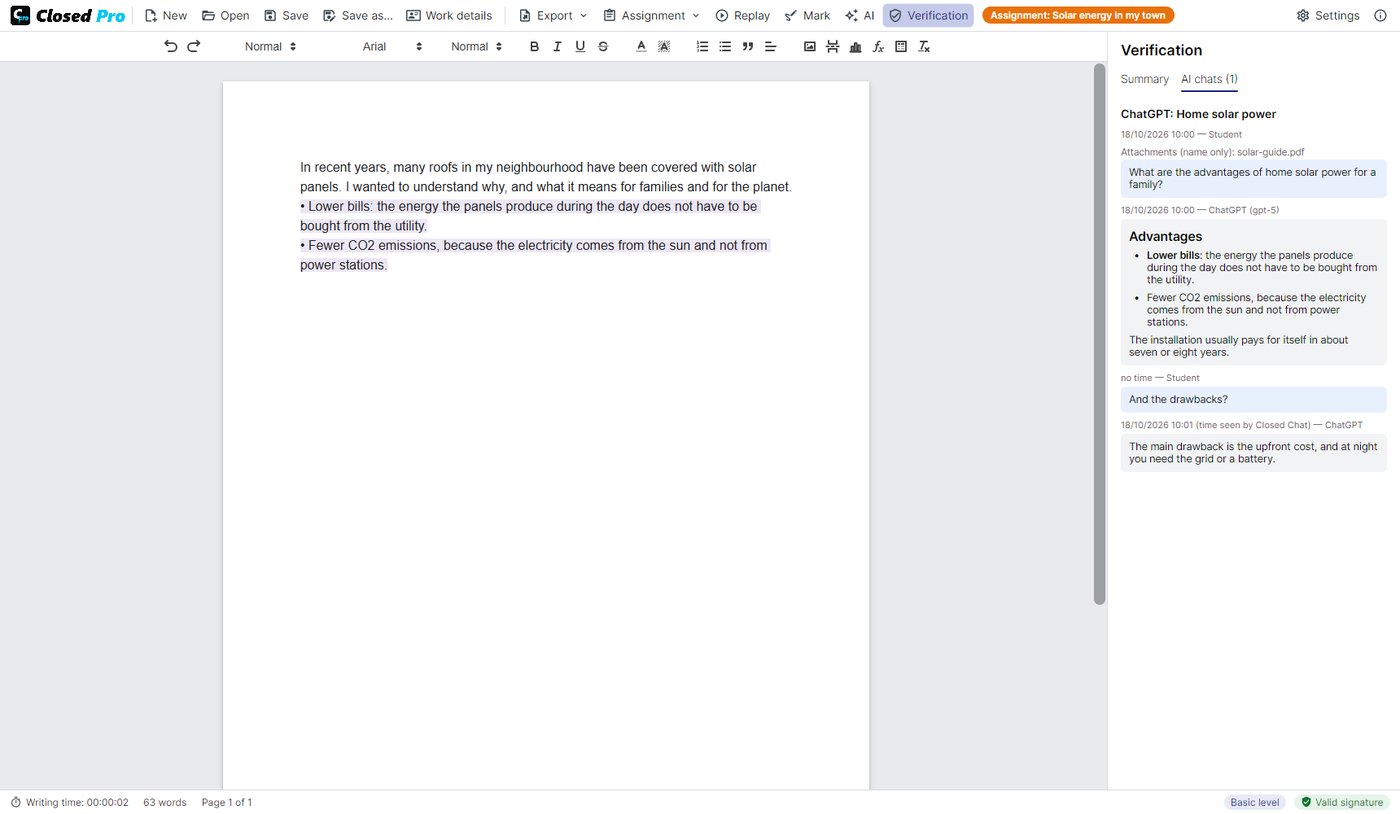
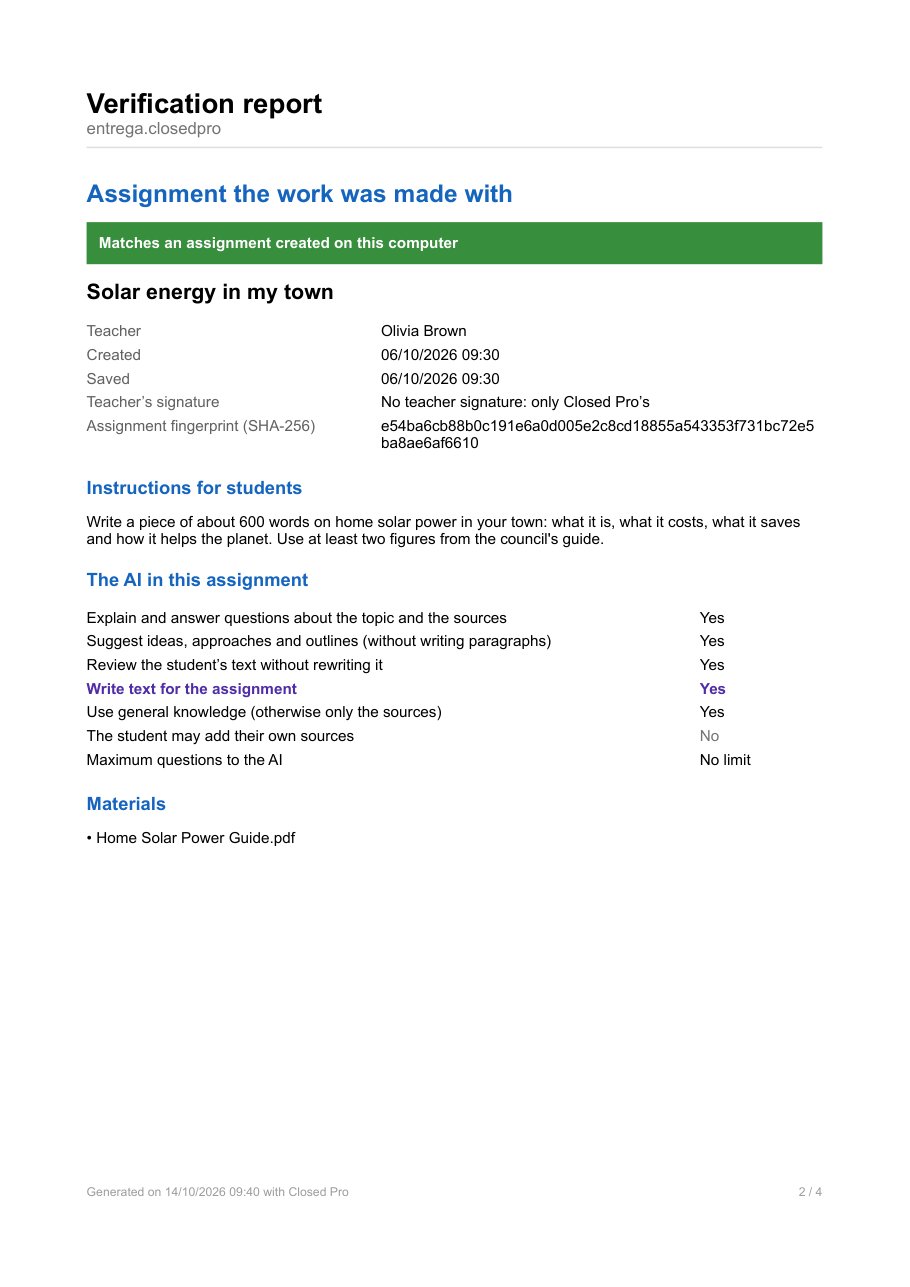
Prepare an assignment with its AI rules. When you receive the work, as a .closedpro file or as a PDF, Closed Pro shows you how it was written, every chat in full and whether it was done with your assignment.
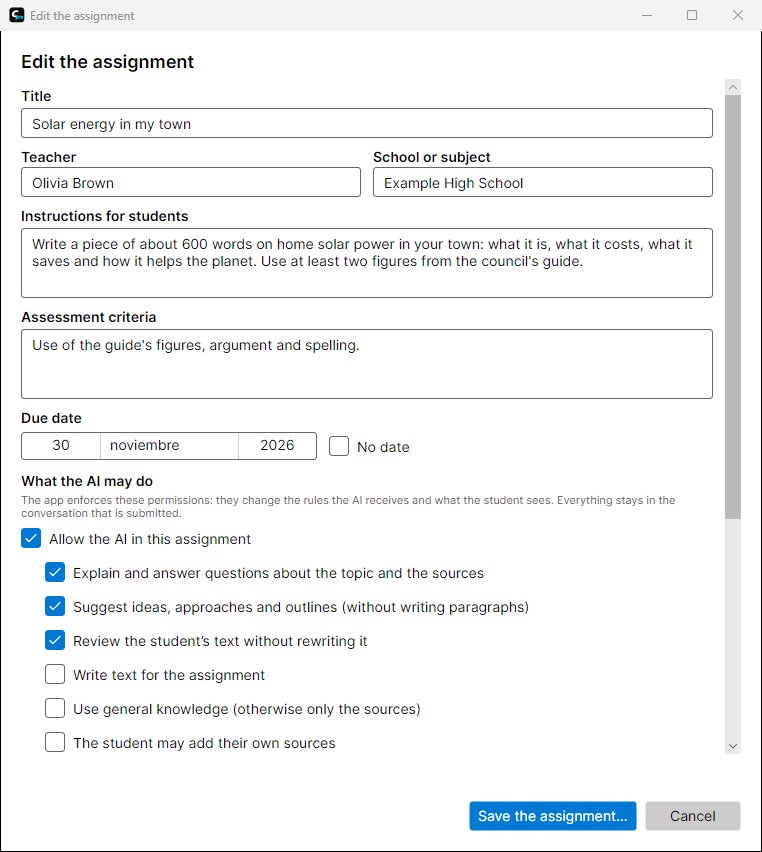
Statement (with formulas, tables and images if needed), criteria, due date, whether AI may be used and how much, in the assignment editor. Save it as a .closedtask file.
On Moodle, Classroom, Teams or by email. Each student opens it with Closed Pro and starts the work.
The student hands in the .closedpro file or the submission PDF, which carries the signed document and the chats inside.
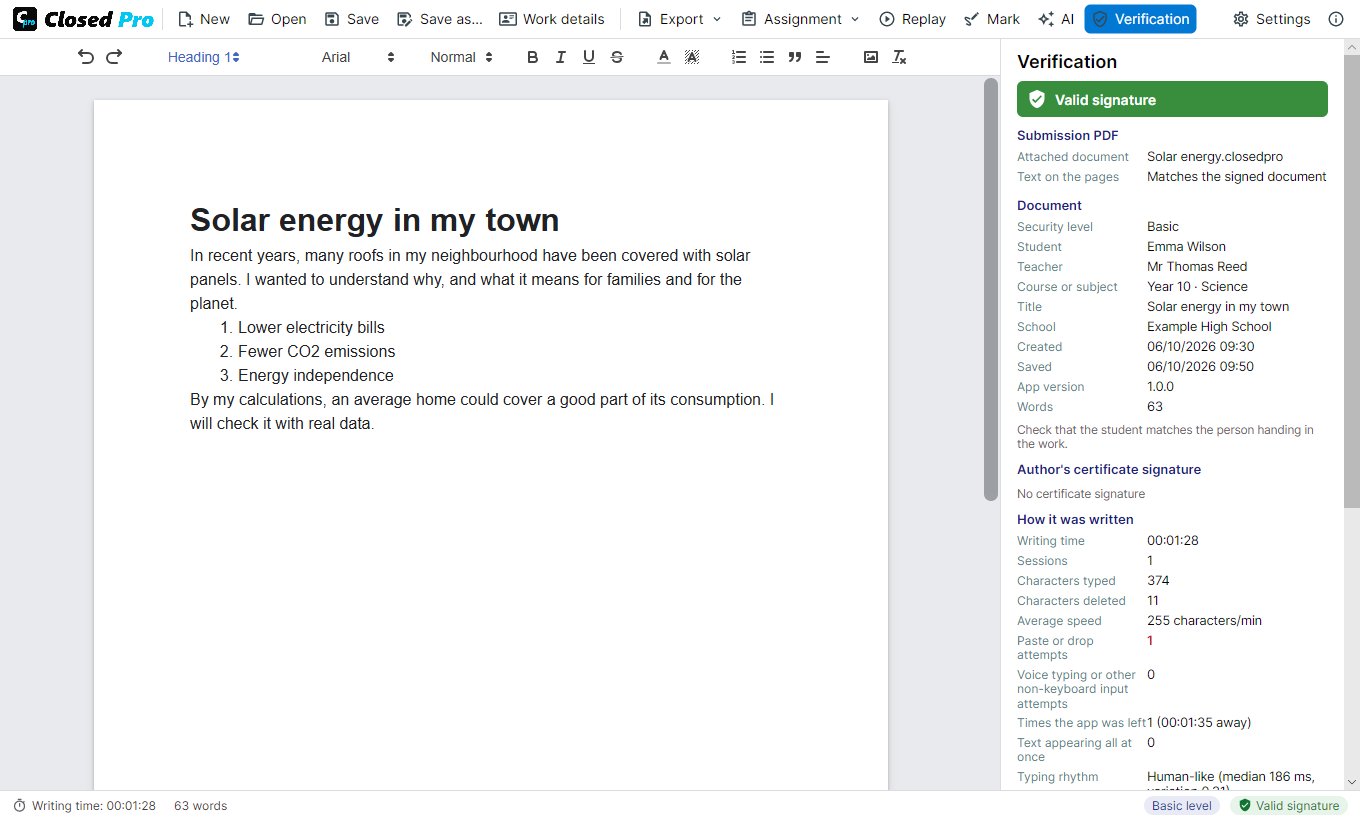
Open it: the signature, the writing data, the assignment, each chat and the replay. Then mark it on the PDF.
The app enforces the rules of the assignment, and what it cannot prevent, it shows you.
The chats panel does not appear and the work is written as in Closed Lite: typing only, recorded and signed. If a chat appears anyway, the verification warns you.
Students import their ChatGPT, Claude or Gemini chats, exported and signed with Closed Chat, and you receive them in full.
You set how much of the work may come from the AI (50 % by default). Closed Pro does not let the student insert beyond it, and the verification shows the final share.
What was typed but matches an AI answer word for word is flagged in the verification and the report, as an indication.
Each chat has the signature of Closed Chat and a time stamp from an independent authority. A chat changed after exporting it cannot be imported.
The student can import several chats but cannot remove any: every imported chat goes in the submission.
The verification report in PDF: the signature status, how the work was written, the assignment it was done with (or that there was none), each chat with its signature and time stamp, the share of AI text in the final work, the typed passages that match AI answers and, in an annex, the full chats.
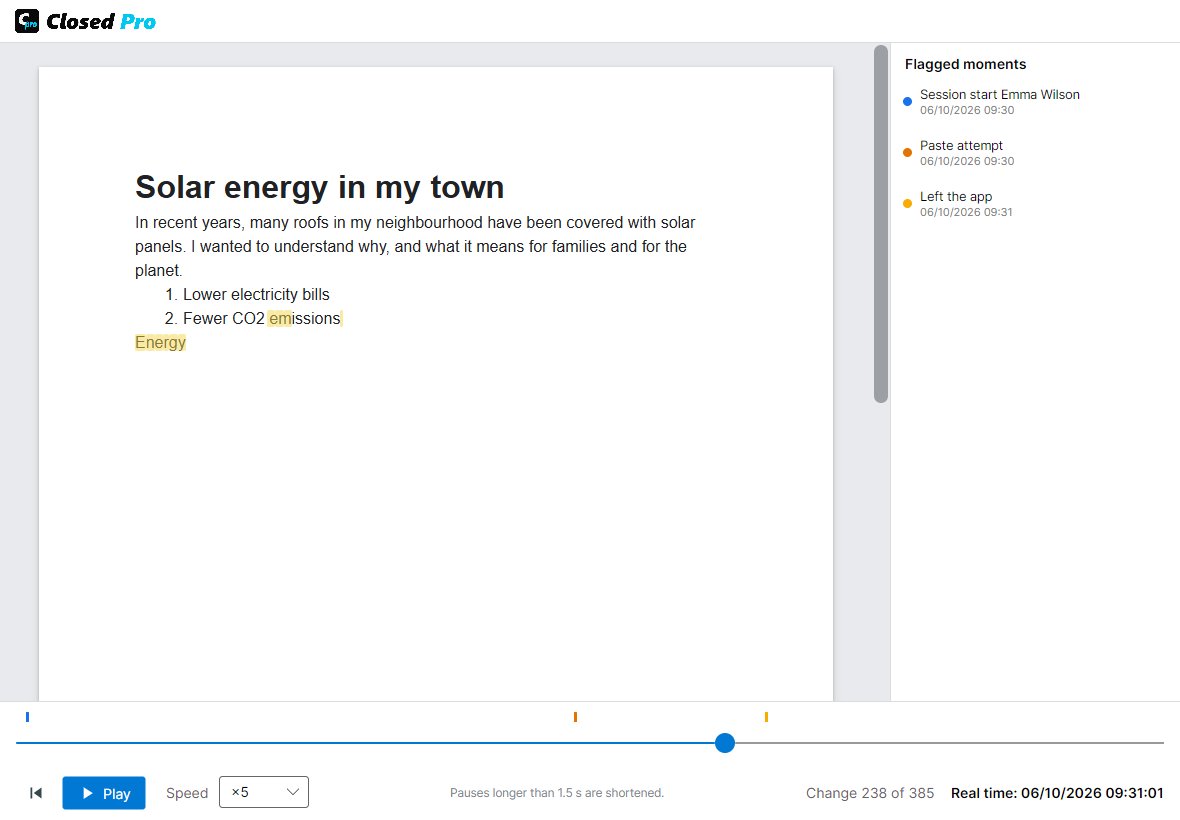
As in Closed Lite: writing time, sessions, deleted characters, blocked attempts to paste or dictate, exits from the program and the replay of the writing at up to ×100. Closed Pro also opens and verifies the work done with Closed Lite.
Many platforms (Moodle, Classroom, Teams) only accept PDF or Word. That is why, when saving, the student chooses between the .closedpro file and a PDF that opens in any viewer and carries the signed .closedpro document inside, as an attachment. Its cover shows the student's data, the assignment and a summary of the AI chats; text inserted from the AI is marked in purple.
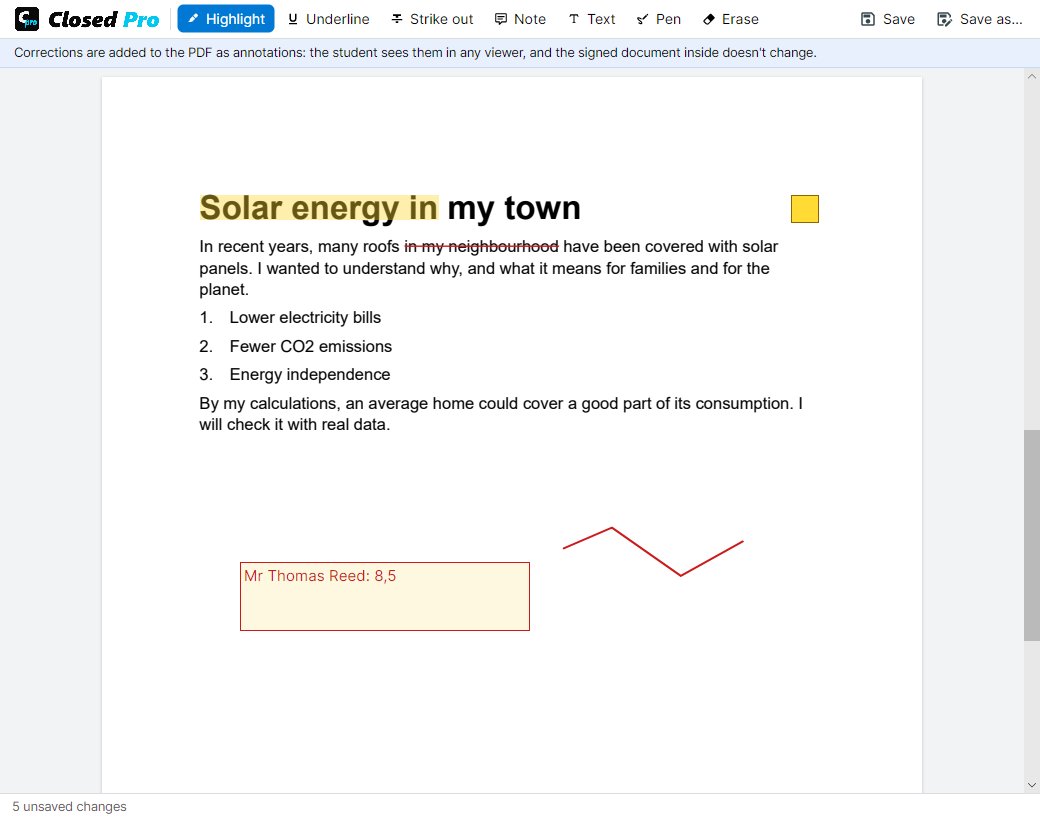
With «Mark», highlight, underline or strike through, add notes, text such as the final grade, or draw with the pencil. The corrections are saved in the PDF as annotations that the student sees in any viewer.